How to Use Notion as a Free CRM for LinkedIn Outreach
Most sales tools and CRMs are overkill if you're doing LinkedIn outreach. You don't need a $200/month platform to track 50 conversations.
What you do need is a simple system that tells you: who you've messaged, what you said, when to follow up, and whether they replied.
Notion can handle all of that. And it's free.
Here's how to set it up — and how to stop wasting time adding contacts manually.
What Makes a Good LinkedIn Outreach CRM?
Before building anything, let's be clear on what you actually need:
- A list of prospects with their contact info
- A way to track where each person is in your outreach sequence
- Follow-up reminders so no one falls through the cracks
- A place to log notes and replies
That's it. You don't need lead scoring, complex automations, or AI-powered insights. Just clarity on who to talk to next.
Step 1: Build the Outreach Database in Notion
Create a new database and add these properties:
- Name (Title)
- LinkedIn URL (URL)
- Company (Text)
- Role (Text)
- Outreach Status (Select) — New, Message Sent, Followed Up, Replied, Not Interested, Meeting Booked
- Last Contact Date (Date)
- Follow-up Date (Date)
- Notes (Text)
Switch to Kanban view using the Outreach Status column. Now you can see your entire pipeline at a glance.
Step 2: Stop Adding Contacts by Hand
Here's where most people give up on their Notion CRM: the setup feels great, but adding contacts one by one is a nightmare.
You find someone on LinkedIn, then you have to:
- Copy their name
- Paste into Notion
- Go back and copy their title
- Paste again
- Add their company
- Repeat 30 more times
By day two, you've stopped using it.
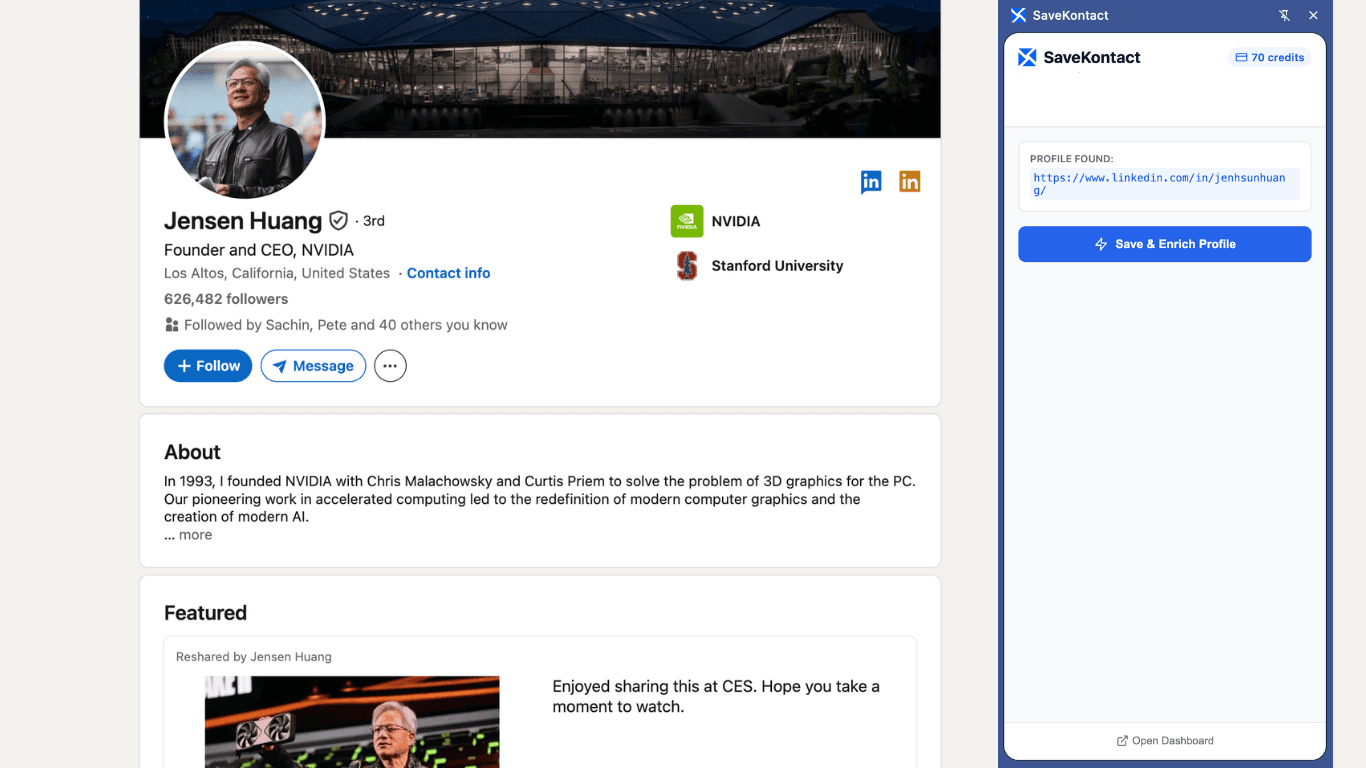
SaveKontact fixes this. Install the Chrome extension, and every LinkedIn profile gets a one-click "Save to Notion" button. It captures their name, role, company, and location — all automatically.
Step 3: Set Up Your Outreach Sequence
Now that contacts are flowing into your database effortlessly, you need a simple sequence to follow.
A basic sequence that works:
- Day 1 — Send a LinkedIn connection request with a short personal note
- Day 3 — If accepted, send your first message (keep it to 3 sentences max)
- Day 7 — Follow up if no reply
- Day 14 — One final follow-up, then mark as closed if still no response
In Notion, update the Outreach Status as you go. Set the Follow-up Date property so you know exactly when to check back in.
Step 4: Filter Your View to Know What to Do Each Day
Create a filtered view called "Follow Up Today" that shows contacts where the Follow-up Date is today or earlier.
Every morning, open this view. These are the only people you need to think about today. Work through the list, update statuses, and set new follow-up dates.
This alone will make your outreach twice as consistent.
Step 5: Log Your Messages
Add a Notes field or open a sub-page for each contact. Paste in the actual message you sent. When they reply, log that too.
This sounds tedious but it takes 10 seconds. And when you reconnect with someone three months later, you'll know exactly what you talked about.
Is Notion Really Good Enough as a CRM?
For most people doing LinkedIn outreach — yes, genuinely.
If you're managing under 500 contacts and doing outreach yourself (not with a team of 10), Notion is more than enough. It's flexible, free, and you can customize it exactly to how you work.
The one thing it was missing was easy data entry from LinkedIn. SaveKontact solves that.
Quick Summary
- Create a Notion database with status, follow-up date, and contact info fields
- Use SaveKontact to save LinkedIn profiles in one click
- Work your sequence with a simple Day 1 / Day 3 / Day 7 / Day 14 cadence
- Check your "Follow Up Today" filtered view every morning
That's all there is to it. Simple system, consistent execution, real results.