How to Build a LinkedIn CRM in Notion (Without People to Notion)
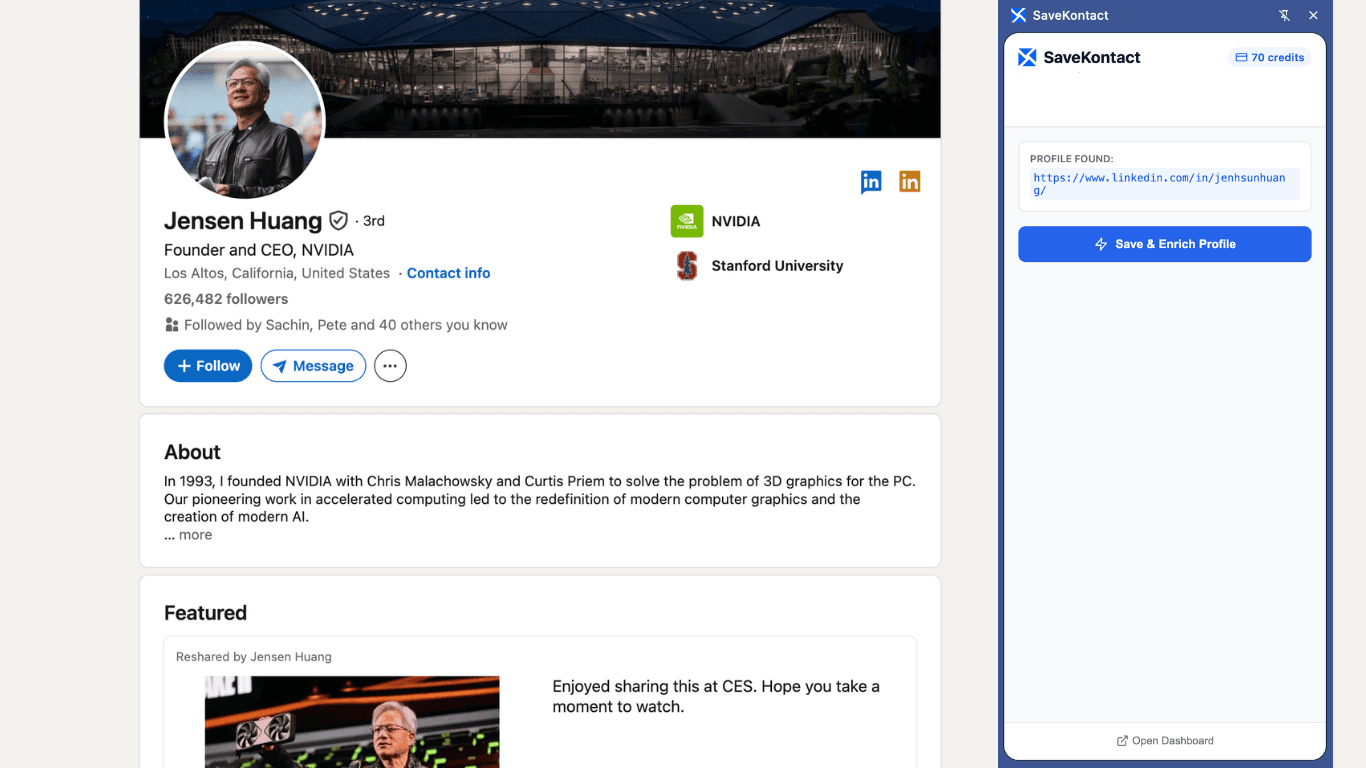
If you've been searching for People to Notion lately, you've probably noticed it's gone. The extension was removed from the Chrome Web Store in mid-2025, leaving a lot of users without their go-to tool for saving LinkedIn profiles to Notion.
The good news is you can build something better. This guide shows you how to create a LinkedIn CRM in Notion from scratch — and introduces the extension most People to Notion users have switched to.
What People to Notion Used to Do
People to Notion was a Chrome extension that let you save LinkedIn profiles to a Notion database with a single click. It was popular because it saved time and worked reliably.
But it had real limitations:
- It only pulled basic profile data
- The free tier gave you just 15 saves per month
- Advanced features were locked behind a paywall that didn't add much value
- It eventually shut down entirely, leaving users with no fallback
If you built your workflow around it, the shutdown was frustrating. But this is actually a good opportunity to build something more robust.
What You Actually Need from a LinkedIn CRM
Before jumping into a new tool, it helps to think about what you're actually trying to do.
Most people want their LinkedIn CRM to handle three things:
- Capture — Save contacts from LinkedIn quickly, without manual data entry
- Data Capture — Get comprehensive data from a LinkedIn profile easily
- Organize — Track status, notes, and follow-ups in one place
People to Notion was decent at capture but lacked comprehensive details, and left the organization entirely up to you. Here's how to nail all three.
Step 1: Build Your Notion CRM Database
Start with a clean Notion database. Here are the properties to include:
- Name (Title)
- LinkedIn URL (URL)
- Role (Text)
- Company (Text)
- Location (Text)
- Status (Select): New Lead, Contacted, In Conversation, Closed, Not a Fit
- Source (Select): LinkedIn, Referral, Event, Inbound
- Follow-up Date (Date)
- Notes (Text)
Create a Kanban view using the Status property. This turns your flat database into an actual pipeline you can work.
Step 2: Replace People to Notion with SaveKontact
SaveKontact is the most direct replacement for People to Notion — and it does more.
Where People to Notion just saved what was visible on the profile, SaveKontact goes further:
- Pulls the full profile (name, title, company, location, profile picture)
- Detects duplicates before adding a contact, so your database stays clean
- Lets you auto-set properties like Status when saving
The result is a contact record that's actually useful from the moment it lands in Notion — not just a name and a LinkedIn link.
Step 3: Create Views That Match How You Work
One thing Notion does really well is views. Once your contacts are in the database, create these three views:
Pipeline view (Kanban) Your main working view. Cards move from "New Lead" to "Contacted" to "In Conversation" as you make progress.
Follow-up view (Table, filtered) Filter by Follow-up Date = today or earlier. Check this every morning. These are the people you need to reach out to right now.
All contacts view (Table) Your full database. Useful for searching, bulk editing, or seeing the big picture.
Step 4: Build a Simple Outreach Routine
Having a CRM is only useful if you actually use it. Build a simple habit:
- Every time you want to save a LinkedIn profile, use SaveKontact (one click)
- Every morning, check your follow-up view and work through it
- Every time you send a message, update the status and set a new follow-up date
- Every Friday, spend 10 minutes cleaning up: remove dead leads, update stale records
That's it. Five minutes a day keeps your CRM accurate and your outreach consistent.
Frequently Asked Questions
Can I import my People to Notion data into the new setup? Yes. If you exported your Notion database before People to Notion shut down, you can still access that data. You may just need to map new fields to your Notion properties when using SaveKontact.
Does SaveKontact work with any Notion database or does it need a special template? It works with any existing database. You just map the LinkedIn fields to your Notion properties during setup.
Is it free? SaveKontact has a free tier. Check the pricing page for current limits and plans.
Does it work on LinkedIn Sales Navigator? Yes, SaveKontact works on both standard LinkedIn and Sales Navigator.
Final Thoughts
People to Notion shutting down was inconvenient, but the replacement is genuinely better. SaveKontact captures more data instantly and keeps your Notion database cleaner.
If you were a People to Notion user, you'll feel right at home — and you'll probably wonder why you didn't have comprehensive data capture all along.